
Practical guides
How to Organize a Pokémon Card Collection and Track Duplicates
Sort cards by set, collector number and variant, then use Acorn TCG to review owned quantities and decide which repeated copies to keep or set aside.
Organize your Pokémon cards by set and collector number, separate their variants, then count the copies of each variant. This gives you a useful distinction: a different card, a different finish and another copy of the same printing each need their own place in your records.
Give your physical collection a clear structure
Choose a filing method that matches how you collect. Set order can suit an expansion binder; grouping by Pokémon or illustration can suit a themed collection. These are suggested organizing methods, so decide what belongs in each group before filling the pages.
- Gather cards from binders, boxes and loose piles before counting.
- Match the set, collector number and printed language when identifying a card.
- Separate finishes such as Normal and Reverse Holo before recording quantities.
- Choose which copies belong in your main collection and label a physical space for extras you may trade or sell.
In Acorn TCG, named collections can reflect those binders or themes. From My Collections, the plus button opens New collection. Enter a name, optionally add a description, then confirm. Open the collection and use Add cards to add card entries to its list.
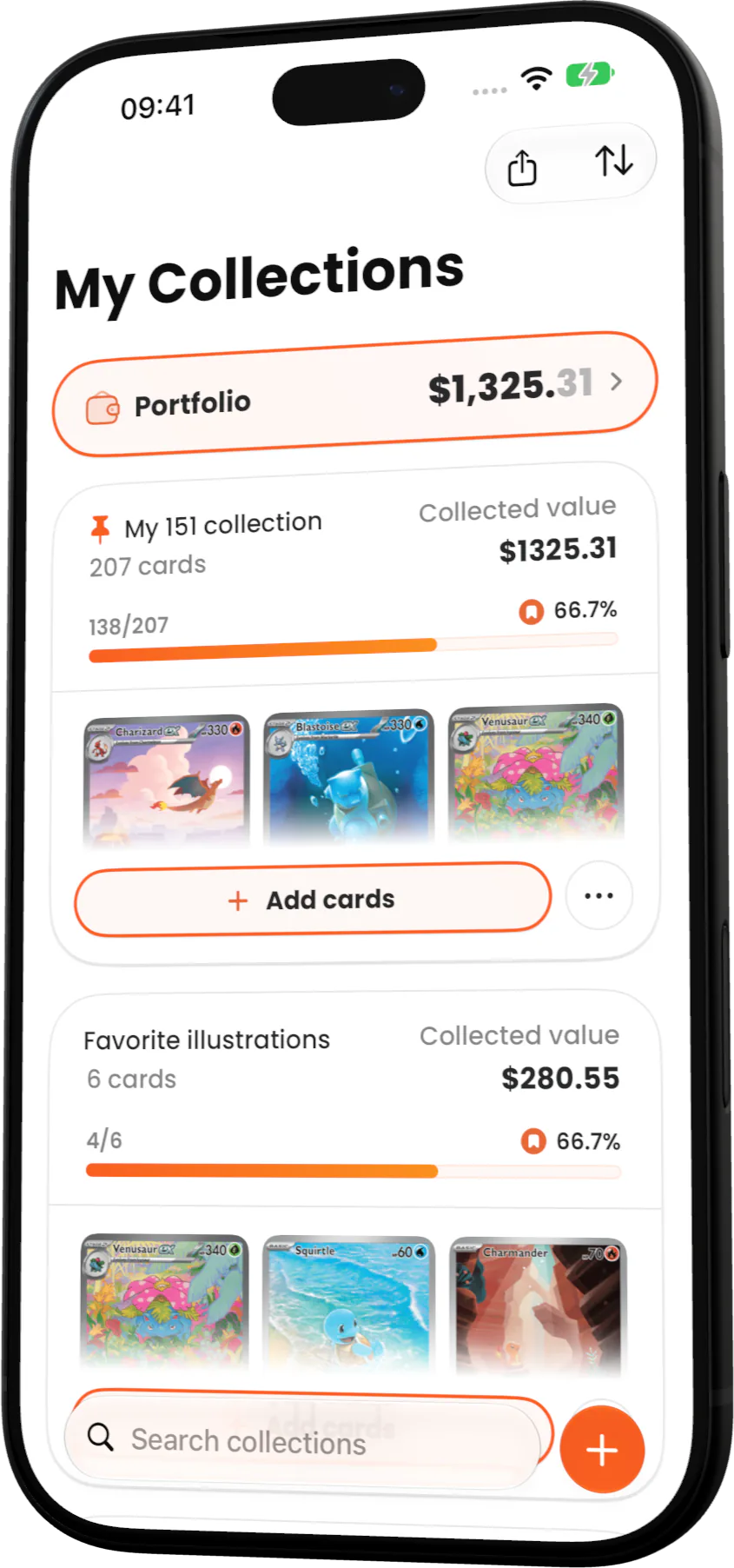
A named collection groups card identities and tracks progress; it does not assign separate quantities of physical copies to each binder. Keep binder locations on your physical labels if you need to know where particular copies sit. The screens in this guide contain demonstration data; their displayed amounts and trends are fictional.
Check the card identity before calling it a duplicate
A shared Pokémon name does not make cards duplicates. Bulbasaur 001/165 and Bulbasaur 166/165 from 151 are different card identities. Check the collector number rather than putting every Bulbasaur into the same counting pile.
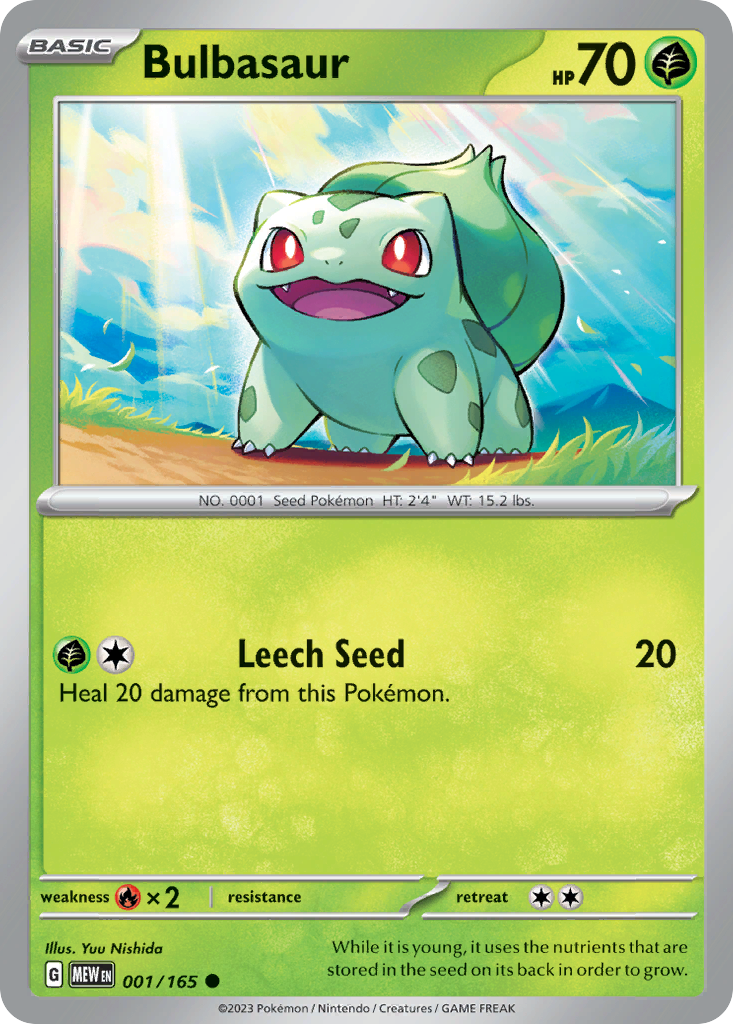
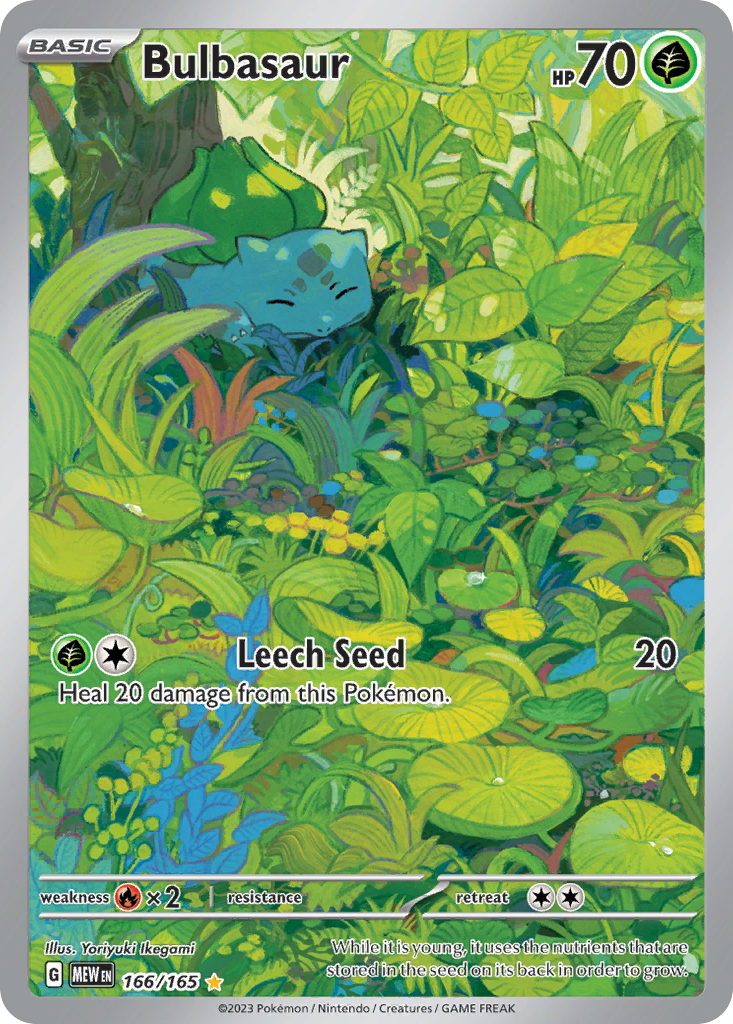
Variants need a separate check. A Normal printing and a Reverse Holo can share a card identity while having separate owned quantities. For organizing purposes, treat an extra copy of the same variant as a repeat, and decide separately whether your collection calls for the other available finishes.
Review repeated copies in Portfolio
Portfolio brings owned cards together. Unique cards counts card identities, while Total copies counts the owned copies, including quantities recorded across their variants. That distinction helps you see why owning more copies does not necessarily mean filling more gaps in a collection.
To review higher quantities, open Filter and choose Quantity with Descending order. With Separate card variants turned off, sorting uses each card’s total copies across its variants. Turn it on to show owned variants separately and sort by each variant’s individual quantity. The example below shows the separated view, with Normal and Reverse Holo Bulbasaur listed independently.
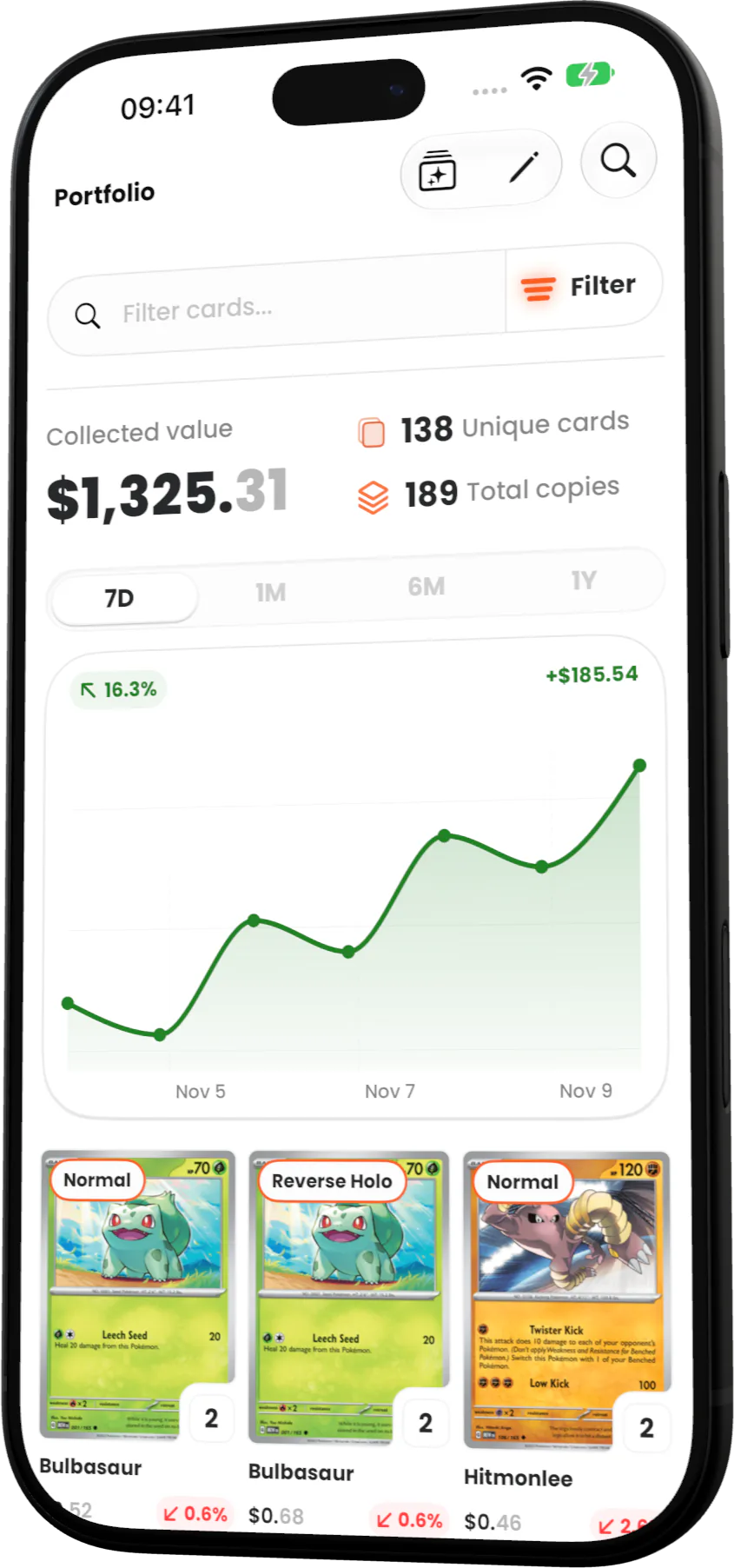
Use the grouped view to find card identities worth checking, then the separated view to see which variant accounts for the copies. A high combined total can include different finishes you want to keep. Quantity sorting helps you inspect repeated copies; it does not automatically identify unwanted duplicates or choose cards to trade.
Update the variant you actually counted
Open a card and check the selected available variant before changing its quantity. The card-detail quantity control sits beside the expansion, as shown in the Poliwhirl example. Its arrows adjust the copies recorded for that selection.
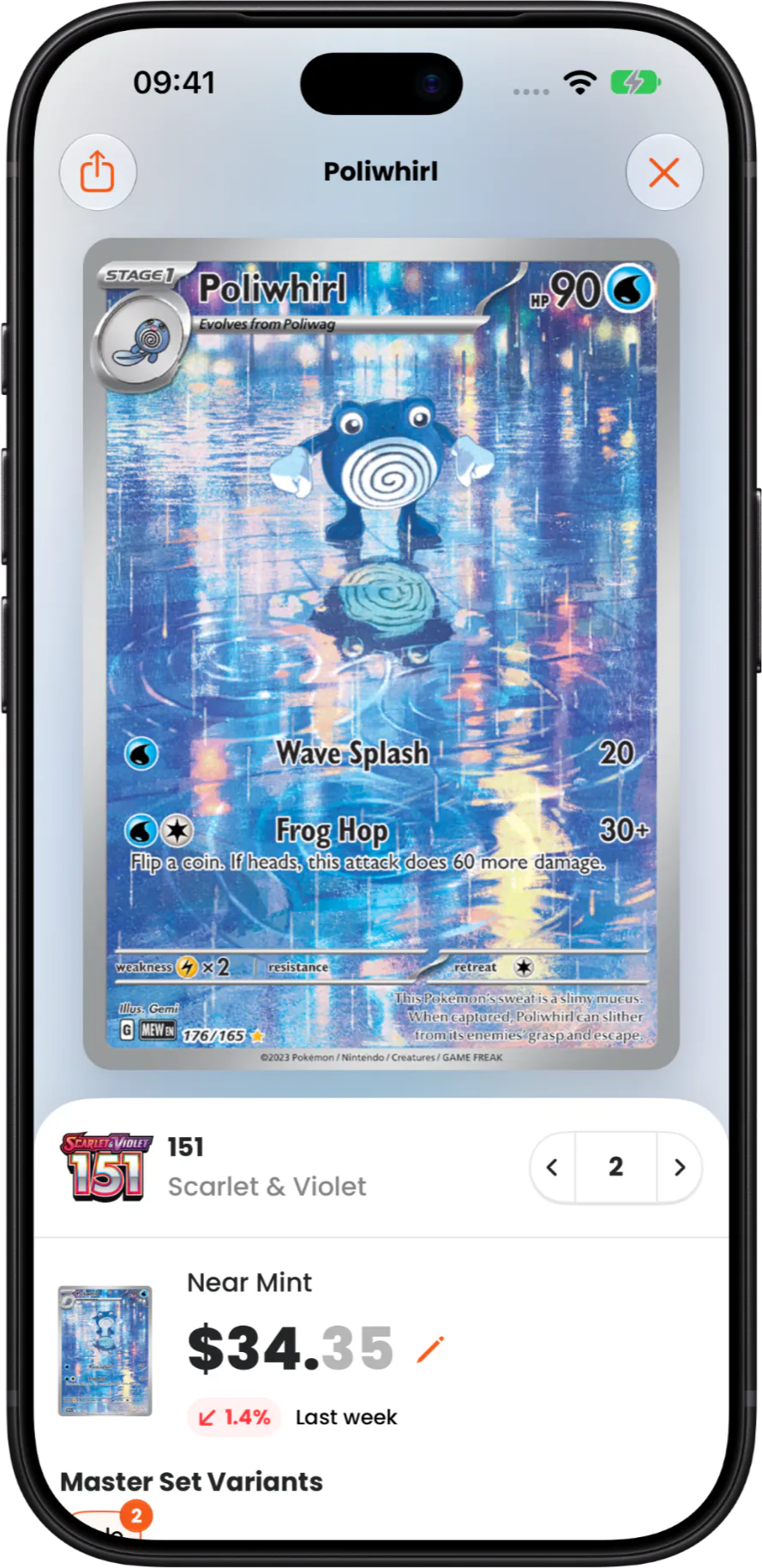
Count that variant in your physical collection, update its quantity, then move to the next finish. When a copy leaves through a trade or sale, adjust the same variant again. Keeping that small routine alongside your binder labels makes the next review easier.
The card data used in this guide comes from the Acorn TCG catalogue.