
Practical guides
Track Pokémon Set Goals and Owned Variants in Acorn TCG
Choose a set goal in Acorn TCG, record the variant you own, and read the difference between a card’s total quantity and its variant badges.
Choose your set goal, then record copies against the variant you actually own. In Acorn TCG, Full Set follows owned cards, while Master Set and Grand Master Set follow their included variants. When you adjust a card’s quantity, the displayed number is its total owned count; the variant badges show the separate counts.
Choose the goal for your set
Before choosing a goal, decide which set and card language you are collecting, which variants you want, and whether associated promotional cards belong in your checklist. That is a suggested way to define your collecting project. Acorn’s goal names describe what the app tracks, rather than a universal collector definition.
- Full Set follows owned cards.
- Master Set follows the variants included in that app goal.
- Grand Master Set also includes the independently trackable variants listed under Additional Variants.
The English 151 example below has Master Set selected, with collection progress above the card grid. Its ownership figures are fictional demonstration data, as are those in the Gengar example later in this guide.
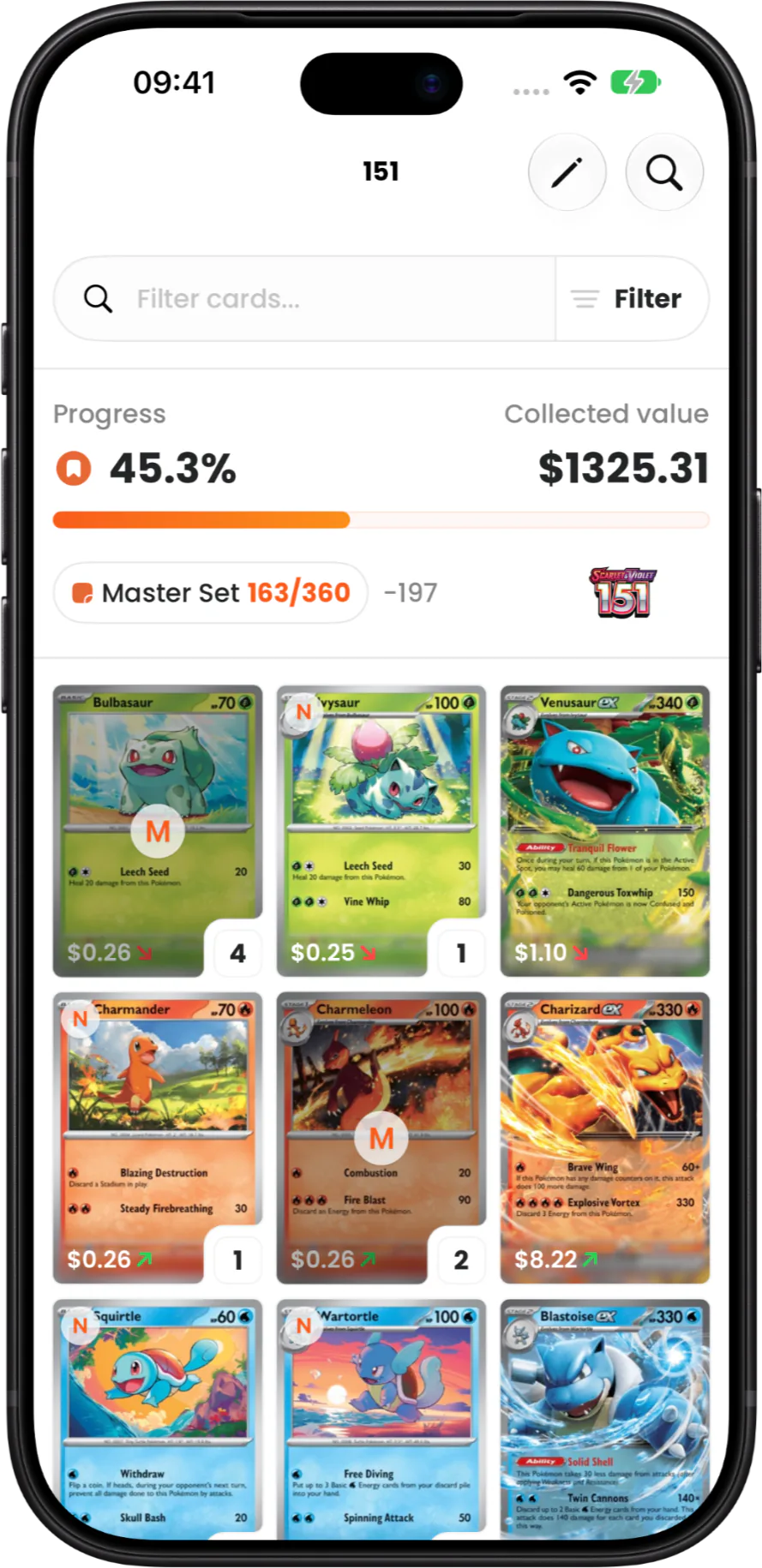
Tap the set progress control to choose Full Set, Master Set or Grand Master Set. Acorn remembers your choice. The close-up shows the selected Master Set goal and its owned and remaining variant counts.
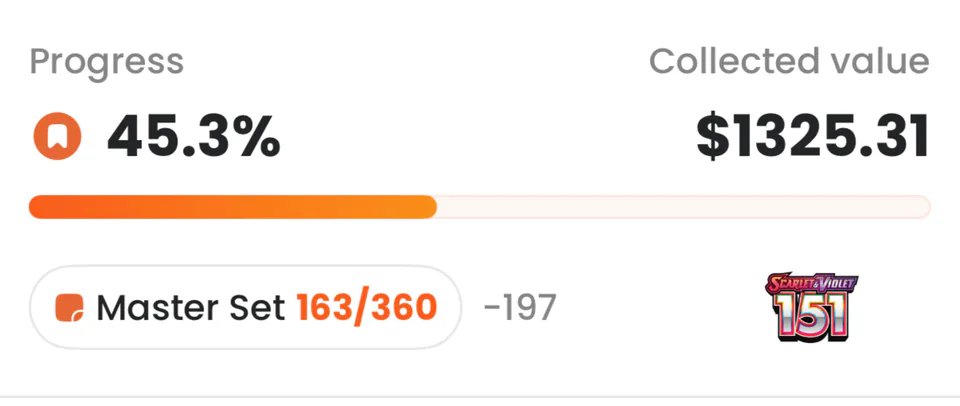
Use that progress against your chosen scope. A missing variant is different from a missing card: owning one printing does not mean you own the others included in your goal. Available entries also do not guarantee that every possible printing is listed or that every set has the same variants.
Record the variant you own
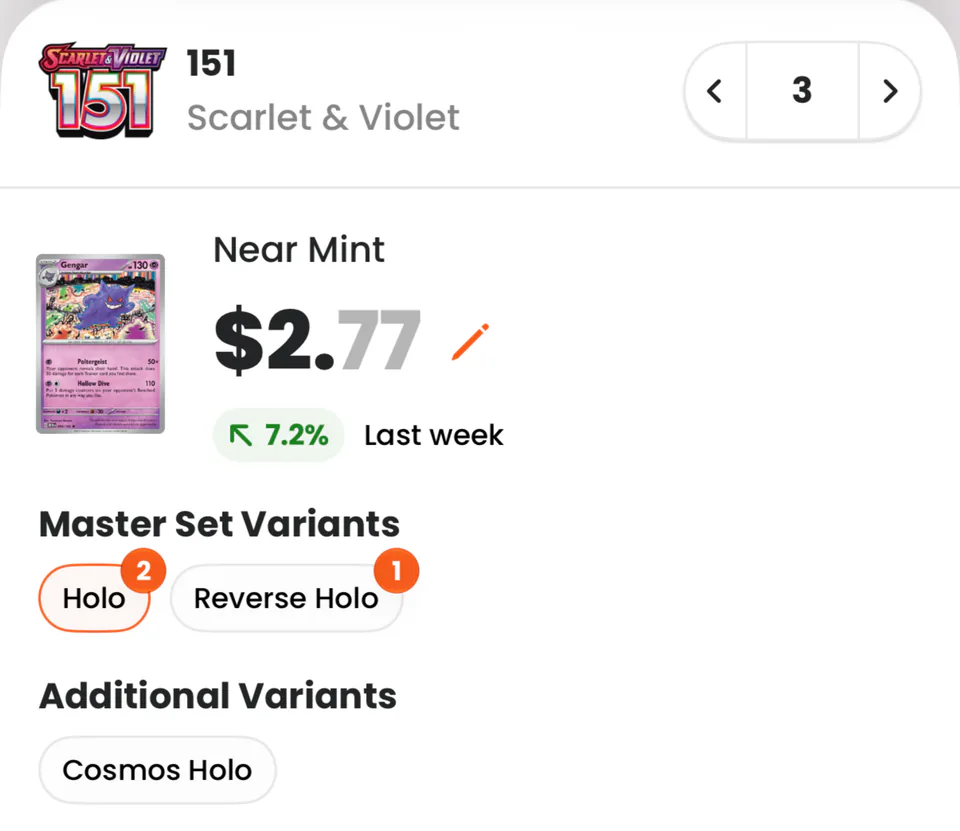
Card details separate Master Set Variants from Additional Variants when those groups have selectable entries. Select the matching variant before adjusting ownership. Selecting an entry in either group clears the selection in the other group.
In the English Gengar 094/165 from 151 example, Holo is selected. The card total is three copies: two Holo and one Reverse Holo. Cosmos Holo appears under Additional Variants with no owned badge.
The quantity stepper displays that card total, not the selected variant’s count. Changes apply to the selected variant and grading choice, so check both before using the control. Read the owned badge beside each variant to see its separate quantity.
- Match the card’s set, language, collector number and printing to the copy in hand.
- Select the matching available variant and check the grading choice.
- Adjust the quantity, then check the variant’s owned badge alongside the card total.